James
James
So, you want to add a line break to your Instagram caption? The secret is simple: just hit the "Return" or "Enter" key. But there’s a catch. For this to work, you absolutely cannot have a space after the last word or punctuation mark before you hit that return key. It's a tiny detail that makes all the difference.
Why Your Instagram Captions Need Line Breaks
Let’s be real—nobody enjoys squinting at a massive wall of text. Getting your line breaks right isn't just a small formatting tweak; it's a fundamental part of making your content engaging and easy to read. A well-spaced caption can literally stop someone mid-scroll, turning a daunting block of text into a message they actually want to read.
Improve Readability and Hold Attention
The biggest win from using line breaks is clarity. When you separate your thoughts into smaller, bite-sized paragraphs, your audience can easily follow along with your story, instructions, or call to action. This strategic use of white space makes your entire post feel less cluttered and more professional.
Think about the impact this clean formatting has:
- It stops the scroll: A caption that looks good is far more likely to grab and hold someone’s attention.
- It boosts comprehension: Shorter paragraphs are just easier for our brains to process.
- It encourages reading: When the text is easy on the eyes, followers are more willing to stick around for longer, more in-depth captions.
Boost Engagement with Longer Captions
It might sound strange, but longer captions often lead to more interaction—if they’re formatted properly. In fact, research shows that posts with captions over 100 words get 23% more comments on average. Using line breaks makes these longer stories approachable, inviting the kind of meaningful conversations that help your account grow.
By making your content scannable, you’re giving your audience the power to quickly find what matters most to them. This simple change can completely transform how your message is received.
Ultimately, a well-formatted caption with proper line breaks creates a better experience for your followers. This contributes to a more polished and engaging profile, which is a must-have if you're looking to learn how to monetize Instagram. These small details are what separate the amateurs from the pros. For more tips on this, don't miss our guide on https://www.evergreenfeed.com/blog/how-to-get-more-engagement-on-instagram/.
Formatting Captions Directly in the Instagram App

While scheduling tools are a lifesaver, sometimes you just need to post directly from your phone. Knowing how to get a clean line break in an Instagram caption within the app itself is a must-have skill, and the best method is surprisingly simple—if you know the trick.
It all comes down to the "Return" key on your phone's keyboard. When you finish a line of text, you hit "Return" to drop down to the next one. Easy, right? But there's a tiny, frustrating detail that trips up probably 90% of users: the trailing space.
If you leave even one single space after the last word or punctuation mark on a line, Instagram will ignore your "Return" key. The moment you publish, it will collapse all your beautiful white space into one big, unreadable block of text.
The No-Space Rule
To make sure your line breaks actually show up, you have to be meticulous. Before you move to a new line, check that there are no extra spaces at the end of the current one.
- This works: Type your line. End it with a word or punctuation. Hit "Return" immediately.
- This fails: Type your line. Hit the spacebar. Then hit "Return."
This one mistake is the number one culprit behind formatting fails. Always make sure your cursor is snug against the very last character before you try to create a line break instagram caption.
I've gotten into the habit of hitting backspace once before I tap "Return," almost like a reflex. This little bit of muscle memory has saved me countless headaches and last-minute edits. It's a tiny action that guarantees a clean, professional-looking caption every single time.
The Symbol Workaround for Extra Space
So, what do you do when the "Return" key is acting up or you want a full blank line between paragraphs for more visual breathing room? The app won't let you just hit "Return" twice, but there’s a classic workaround that social media managers have used for years.
All you need to do is place a single, discreet symbol on the line by itself. This tricks Instagram into creating the vertical space you're looking for, which makes your caption so much easier to read.
A few popular choices are:
- A simple period (.)
- A dash or hyphen (-)
- A subtle emoji, like a small dot (•)
The structure in your caption editor would look something like this:
Your first paragraph ends here..And your second paragraph starts here.
This is the perfect way to create a clean separation between your main caption and your hashtag block, giving your post a polished feel right from your phone.
Using a Computer to Draft Perfect Instagram Captions
If you’re like me and find a real keyboard faster and more comfortable, drafting your Instagram captions on a computer is a total game-changer. But there's a crucial detail that can make or break your formatting: the app you use to write in. Your secret weapon here is a plain text editor.
I’m talking about simple programs like Notepad on Windows or TextEdit on a Mac. These apps don't sneak in any hidden formatting, styles, or weird code behind the scenes. It's just pure, clean text, which is exactly what Instagram's caption field needs to understand your line break instagram caption correctly.
The Problem With Rich Text Editors
So, where do things usually go wrong? The most common pitfall I see is people copying and pasting directly from Google Docs or Microsoft Word. These "rich text" editors add all sorts of invisible formatting characters that completely trip up Instagram. The result? Your beautifully spaced-out paragraphs collapse into one big, unreadable block of text. This is the very reason an entire industry of "line break generator" apps popped up, as this great article explains on how to get perfect line breaks.
Sticking with a plain text editor is the most reliable way to avoid this headache. It guarantees that what you copy is exactly what Instagram gets—just your words and clean returns.
Here’s the simple workflow I use for flawless captions every time:
- First, open up a plain text editor on your computer.
- Write out your full caption, hitting the "Enter" or "Return" key wherever you want a line break.
- Now for the pro-tip: Proofread carefully and make absolutely sure there are no stray spaces after the last word on each line. This is a common culprit for formatting errors.
- Finally, just copy the whole thing and paste it directly into the caption field, whether you're posting from Instagram's desktop site or using a scheduling tool.
This desktop-first approach works perfectly with third-party platforms, too. It’s ideal for batching a week's worth of content at once. As we show in our guide on using Buffer for social media, this simple prep step can fit seamlessly into a much larger, more efficient workflow. By starting with a clean slate, your captions will look exactly as you intended.
When You Need Perfect Line Breaks Every Time, Use a Tool
Let's be honest, manually adding line breaks can sometimes feel like a gamble. If you're tired of the guesswork and just want your captions to look perfect every single time, turning to a third-party tool is the way to go. These apps and websites are built specifically to sidestep Instagram's formatting quirks.
They take the pressure off you to remember things like the "no extra space" rule. All you have to do is write or paste your caption, and the tool cleans it up, often using special invisible characters that Instagram interprets correctly. The result? Flawless paragraphs and even completely blank lines, exactly where you want them.
This little flowchart is a great visual for how to approach drafting captions to avoid formatting headaches from the start.
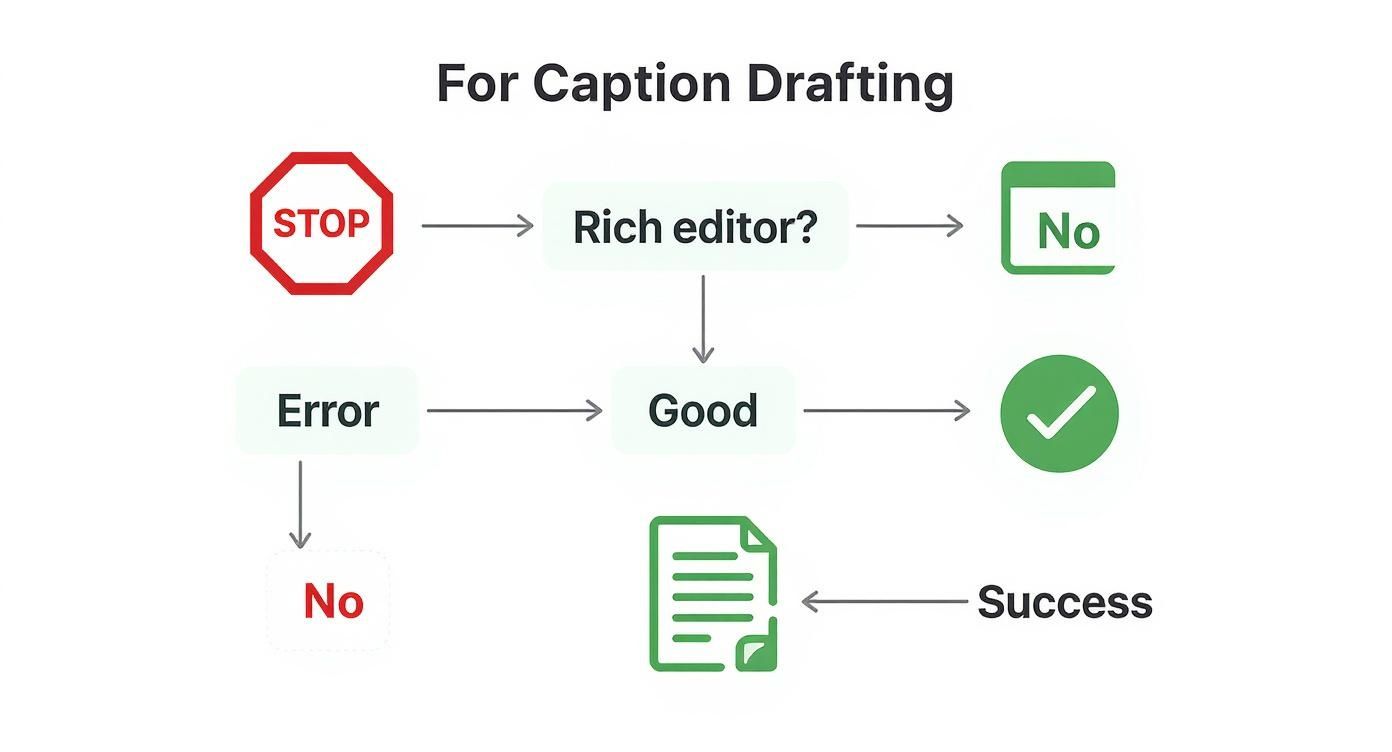
The main point here is that drafting in a "rich" editor like Google Docs or Word often introduces hidden formatting that breaks your captions. Starting in a plain text environment is always the safer path to success.
Lean on Your Social Media Scheduler
For anyone who plans content ahead of time—social media managers, I'm looking at you—your scheduling platform is your best friend. Most modern schedulers have already solved the line break problem for you.
Tools like Later, Buffer, and Planoly are designed with Instagram’s API in mind. When you draft a caption in their interface, hitting the "Enter" or "Return" key creates a line break that actually sticks when the post goes live. This is a game-changer for workflow, as it keeps everything in one place without needing an extra copy-paste step.
For anyone managing client accounts or a professional brand, building your workflow inside a reliable scheduler isn't just a convenience—it's a necessity. It removes the risk of a beautifully crafted caption turning into a jumbled mess at the last minute.
Of course, not all schedulers are created equal. If you're shopping around, it's worth checking out a good comparison of the best social media scheduling tools to see which one fits your specific needs and budget.
Quick Fixes with Line Break Generators
What if you don't use a scheduler and just need a quick, reliable fix for a single post? That’s where free, web-based line break generators come in. They are simple, fast, and foolproof.
Here are a few solid options I've used:
- CaptionMaker: A clean, no-nonsense tool. Paste your text, copy the formatted version. Done.
- IG LineBreak: Does exactly what the name implies, focusing purely on getting your Instagram line breaks right.
- Insta-space: This one is great because it also lets you play around with different fonts, in addition to fixing your spacing.
These sites are perfect to have bookmarked. They provide a guaranteed fix in seconds, ensuring your caption formatting holds up no matter what.
Choosing Your Instagram Line Break Method
With a few different options on the table, it can be tough to know which one is right for your workflow. This table breaks down the pros, cons, and best-use cases for each method we've covered.
| Method | Best For | Pros | Cons |
|---|---|---|---|
| Manual (Return key) | Quick, single posts from the Instagram app | – No extra tools needed – Fast and simple |
– Prone to errors (invisible spaces) – No blank lines |
| Invisible Characters | Creating blank lines or when the Return key fails | – Creates true empty lines – Reliable and consistent |
– Requires copying/pasting – Can be tedious for long captions |
| Scheduling Tools | Content planners, brands, and social media managers | – Seamless "what you see is what you get" workflow – Keeps all content in one place |
– Requires a paid subscription – Not ideal for spontaneous posts |
| Line Break Generators | A quick, foolproof fix for any post | – 100% reliable – Free and easy to use |
– Adds an extra step (copy/paste) – Requires a web browser |
Ultimately, having a dedicated scheduler is the most professional and reliable long-term solution. But for one-off posts or troubleshooting, a free generator tool is an invaluable resource to have in your back pocket.
Common Instagram Formatting Mistakes to Avoid
Even when you know all the tricks for getting a line break in an Instagram caption, it’s painfully easy for one tiny slip-up to wreck your beautiful formatting. I’ve seen it happen countless times. Knowing what not to do is just as important as knowing the right steps.
The single biggest culprit? A stray space. If you leave just one space after the last word or punctuation mark on a line before hitting "Return," Instagram will ignore your line break completely. Your carefully separated paragraphs will instantly collapse into a messy wall of text when you post. It's the most common and frustrating formatting error out there.
Copying from the Wrong Place
Another classic mistake is drafting your caption in a rich text editor like Google Docs, Word, or even some of the fancier note-taking apps. These programs sneak in invisible formatting code that Instagram’s simple text field just can’t understand. The result is a jumbled, unpredictable mess.
Your safest bet is to always draft in a plain text editor—think the basic Notes app on your phone or Notepad on Windows. This guarantees that what you see is exactly what you’ll get when you post.
Think of it as a pre-flight check. Before you hit "Share," quickly scan for those trailing spaces and make sure you're not pasting from a source that adds hidden code. A two-second review can save you a world of formatting headaches.
Finally, resist the urge to clump your hashtags directly beneath your caption text. It makes your post feel cluttered and can be overwhelming for readers. A much cleaner approach is to use symbols or invisible characters to create a clear separation. This simple trick makes your caption far more scannable and professional.
Your Instagram Caption Questions, Answered
Even when you think you've got it all figured out, Instagram captions can still throw you a curveball. Let's tackle some of the most common questions that pop up, so you can get back to posting without the formatting headache.
Why Did My Line Breaks Vanish After I Posted?
This is the classic, most frustrating problem, and it's almost always one of two things. First, check for a sneaky space after the last word of a line, right before you hit 'Return.' If Instagram sees that tiny, invisible space, it smushes your lines together. Make sure your cursor is snug against the final letter or punctuation mark.
The other common culprit is pasting text from another app. When you copy from places like Google Docs, Word, or even some notes apps, you often bring over hidden formatting code. Instagram doesn't know what to do with it, so your beautifully spaced-out caption turns into one giant, hard-to-read block of text.
How Can I Add a Full Blank Line Between Paragraphs?
You've probably noticed that just hitting 'Return' twice (or more) in the Instagram app doesn't work. The app simply ignores those extra returns. To get that clean, empty space for a little visual breathing room, you need a workaround.
The easiest trick is to put a single, subtle symbol—like a period (.)—on the line you want to keep blank. If you want a truly invisible solution, you can use a line break generator tool. These sites add a special invisible character that Instagram reads as content, giving you a perfect, clean-looking blank line.
A clean, empty line is the perfect way to separate your main caption from your block of hashtags. This small detail makes your post look significantly more professional and organized, encouraging people to read what you've written.
Do Hashtags Mess Up My Line Breaks?
Nope, the hashtags themselves won't break your formatting. But where you put them can make your caption look messy. Just dumping a big block of hashtags right after your last sentence can feel cluttered and a bit spammy.
The best approach is to create a clean separation. After you finish your main caption, use one of the methods we just talked about—the symbol or the invisible character—to add a few line breaks. Then, you can pop your hashtags in at the very bottom. This keeps your core message front and center and your hashtags neatly tucked away, still doing their job.
Is There a Character Limit for Instagram Captions?
Yes, and it’s a generous one. You have a maximum of 2,200 characters for your Instagram caption. That count includes everything: letters, numbers, emojis, symbols, and yes, all your hashtags. It's also worth remembering that those invisible characters from line break generators count towards the limit, too. For most posts, 2,200 characters is more than enough space to tell your story.
Ready to stop worrying about formatting and start saving hours on your social media? EvergreenFeed automates your content scheduling with Buffer so you can maintain a constant, engaging presence without the manual work. Start your free trial today and put your content on autopilot.