James
James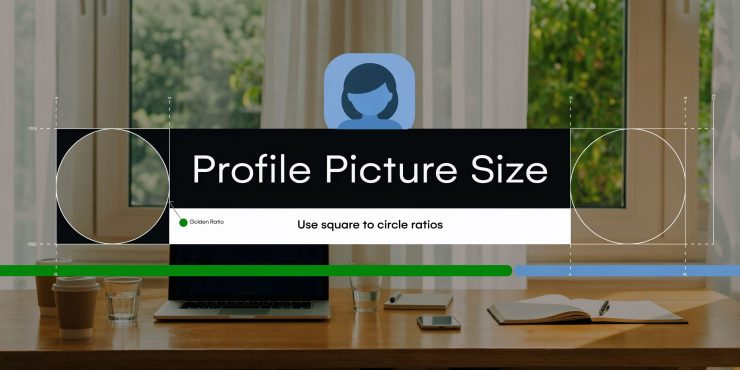
You notice a bad Twitter avatar after the damage is done.
A logo looks sharp in Figma, then turns soft in the feed. A headshot feels balanced in a square export, then X cuts the sides off in the circular crop. A brand mark that looked clean on desktop becomes a gray blur on a high-DPI phone screen. Junior teams treat the profile picture as a tiny asset. That is the mistake.
Your avatar sits next to every post, reply, mention, and notification. It does more than “look nice.” It carries recognition at a glance, when people scan fast and decide in a second whether your account feels credible. If you are trying to improve reach and trust, a polished avatar supports the same job as your bio and posting cadence. It works in the background on every impression, which is why it belongs in the same conversation as tactics to gain followers on Twitter.
Why Your Twitter Profile Picture Matters
Teams waste time fixing tweets and ignore the one image that appears beside all of them.
Your twitter profile picture size and file quality affect how people recognize you in the feed. If the image is muddy, badly cropped, or overloaded with detail, the account feels sloppy before anyone reads a word. That applies to personal brands, agency accounts, founders, and product companies.
A good avatar does three jobs at once:
- Recognition: People should identify the face or logo instantly.
- Trust: Clean visuals make the account feel maintained.
- Consistency: The same visual identity should hold up in every X interface.
The technical side matters because X displays your image small, very small. That means weak exports, poor file choices, and edge-heavy layouts fall apart fast. What works is simple composition, enough resolution, and a file format that matches the image type.
Key takeaway: The best profile pictures are not the most detailed. They are the most legible after resizing and circular cropping.
The Official Twitter Profile Picture Specs
If you need the raw specs first, use this and do not improvise.
| Attribute | Requirement |
|---|---|
| Recommended upload size | 400 x 400 pixels |
| Minimum upload size | 200 x 200 pixels |
| Aspect ratio | 1:1 square |
| Maximum file size | 2 MB |
| Supported formats | JPG, PNG |
According to SocialRails’ X image size guide, the recommended upload size is 400 x 400 pixels, the image must use a 1:1 square aspect ratio, the maximum file size is 2 MB, and X supports JPG and PNG for profile pictures. That same guide also notes that X automatically crops the square image into a circle on display.
A few practical notes matter here.
Pixels are your image dimensions. If you export below the minimum, upload problems or visible softness are likely.
Aspect ratio means shape, not quality. A 1:1 ratio means the canvas is perfectly square.
File size is your upload ceiling. Hitting the limit is a sign that the export settings are inefficient, not that the image is better.
Format choice is not cosmetic. JPG and PNG behave differently under compression, and that affects sharpness. That trade-off matters most for logos, icons, and text-based marks.
Understanding The Circular Crop and Safe Zone
The square file you upload is not the shape people see.
X places a circular mask over your image. Visualize it as looking through a porthole. The middle survives. The corners do not. If your logo touches the outer edges of the square, part of it will disappear.

What belongs inside the safe zone
Keep the important content in the center area of the square.
That means:
- Faces: Eyes, nose, and mouth should sit comfortably inside the center.
- Logos: Use the icon mark, not the full horizontal lockup, unless the logo was designed for square use.
- Initials or symbols: Leave breathing room around them so the circle does not clip edges.
What usually gets cut off
Teams run into the same avoidable problems:
- Corner text: It disappears first.
- Wide logos: The circle trims the outer edges and makes the mark feel cramped.
- Tight headshots: Hair, shoulders, or face edges can get chopped and look awkward.
A simple rule works well. Design the image as a square, but judge it as a circle. In Figma or Adobe Express, add a circle overlay on top of the square artboard before export. If it looks balanced there, it will survive upload.
Practical tip: If you have to choose between filling the canvas and preserving the subject, preserve the subject. Extra background is safer than clipped branding.
How Your Profile Picture Displays Across The Platform
Your avatar gets judged in the smallest placements first. A profile photo that looks sharp on your full profile can turn soft, muddy, or unrecognizable once X shrinks it in the feed, replies, and notifications.

Across the platform, the same square file is rendered at several different sizes. The full profile gives the image room to breathe, but the feed, reply threads, and notification views reduce it to a much smaller circle. On high-DPI screens, that reduction is even less forgiving. If the original file has weak edge definition, compression blur, or fine details packed too tightly, those flaws show up fast.
This is why source quality matters more than the on-screen size suggests. A small avatar still needs enough real pixel data to survive resizing cleanly. If you upload a marginal file, X compresses and scales it again. That is where logos lose crisp edges, skin tones smear slightly, and thin shapes start to break apart.
What this means in practice
The feed is the primary test. That is where people scan fast, often on bright mobile screens, and make snap judgments about whether an account looks credible.
Design for recognition, not decoration. If the avatar depends on tiny text, hairline outlines, subtle gradients, or a busy background, it may hold up on your profile page and fail everywhere else. I tell teams to preview the image at very small sizes before upload because that catches the problems that polished desktop mockups hide.
Profile presentation also needs to stay consistent with the rest of the account. If you are tightening the avatar, review the twitter profile completion best practices too, so the image, bio, header, and brand cues all work together.
What holds up across placements
Use elements that remain clear after repeated resizing and compression:
- One obvious subject: a face, symbol, or single logo mark
- Clear edge contrast: the subject should separate cleanly from the background
- Thicker shapes: bold forms survive better than fine strokes
- Minimal texture: noisy backgrounds create blur and visual clutter at small sizes
- No small text: words inside avatars usually disappear or turn fuzzy
A simple QA step saves rework. Export the image, shrink it down in Figma or your image editor, and inspect it at small thumbnail sizes on both light and dark backgrounds. If the subject is still instantly recognizable, the file is ready.
A Step-by-Step Guide to Change Your Profile Picture
Once the file is prepared correctly, the upload itself is quick.
On desktop
- Log in to X and open your profile.
- Click Edit profile.
- Click the profile picture area.
- Choose the new image from your computer.
- Use the crop tool to position the subject in the middle.
- Confirm the crop.
- Click Save.
The crop step matters. Do not rush it. X shows you the image inside the circular frame, so use that preview to check edge clipping before saving.
On mobile
The app path is slightly different but still straightforward.
- Open the X app.
- Tap your profile icon, then open Profile.
- Tap Edit profile.
- Tap the current profile picture.
- Choose a photo from your library, or take a new one.
- Pinch and drag to center the subject.
- Tap Done or Apply, then Save.
Final check before you leave the screen
After saving, inspect the image in three places:
- Your profile page
- The feed next to a recent post
- Notifications or replies
If it looks good only on the full profile, go back and fix it. The small placements provide the essential test.
Optimizing Your Image for Maximum Clarity and Brand Impact
A profile photo that looks fine in your design file can still turn soft on a high-DPI phone screen after X resizes and compresses it. That is where brand clarity gets lost. Thin strokes blur, edges pick up halos, and a clean logo starts to look slightly cheap in the feed.

Why 400 x 400 is the working standard
Use 400 x 400 pixels as the default export size.
The minimum accepted size only answers whether the file can upload. It does not protect sharpness once X scales the image across different interface placements and device densities. On newer phones, low-resolution avatars show their weaknesses fast because the display is crisp enough to expose every soft edge.
A larger source file gives X more clean pixel data to work with during resizing. That matters most for logos, icons, initials, and portraits with hard contrast around the face or hairline.
PNG versus JPG
Choose the format based on the image type, not habit.
- Use PNG for logos and graphic marks. It holds hard edges and flat-color transitions better, which reduces fuzziness after compression.
- Use JPG for photos and headshots. A well-exported JPG keeps file size reasonable without hurting a photographic image.
- Do not swap them casually. A logo saved as a compressed JPG often picks up ringing around text, muddy diagonals, and dirty-looking edges inside the circle.
This trade-off matters even more for scheduled and automated posts. Your avatar appears over and over in small sizes, so minor export problems become a repeated brand defect.
What bad compression looks like
You can spot the damage in seconds if you know what to check.
Look at the outer edge of a logo. If it appears slightly hairy or glows against the background, the export is too compressed or the wrong file type was used. Check flat background colors next. If they break into uneven patches or visible blocks, the file has already lost quality before the platform touches it.
Portraits fail differently. Watch for smeared skin texture, dull eyes, or broken detail around hair and glasses. Those flaws get worse when the image is reduced for replies, notifications, and automated publishing surfaces.
A practical export workflow
Use this process before upload:
- Start from the original asset, not a screenshot or a file pulled from another social profile.
- Build the avatar on a square canvas at 400 x 400 pixels or higher, then export down cleanly if needed.
- Keep the subject bold and centered so the circular crop does not shave off important detail.
- Export logos as PNG. Export photos as high-quality JPG.
- Zoom out and preview the image small on your desktop or phone before uploading.
- Re-export if edges look soft, especially on letters, outlines, or facial features.
If you are cleaning up a headshot first, this guide on how to make your photos look professional is useful because it focuses on improvements that still hold up after resizing.
For personal brands, image quality also needs to match the rest of the profile. A sharp avatar paired with a weak bio still creates a broken first impression, so review your photo alongside these good Twitter bio examples for personal and brand profiles.
Best practice: Export for the smallest real use case. If the avatar stays clear in the feed, it will usually hold up everywhere else.
Common Design Mistakes to Avoid
Most bad avatars are not design failures. They are platform misunderstandings.
Teams design for the square file, not the circular display. They design for desktop, not the feed. They design for detail, not recognition.
Mistake one: putting key elements near the edge
This is the classic crop problem. Corners disappear.
Use a centered layout instead. If the logo feels too small after centering, simplify the mark rather than pushing it outward.
Mistake two: using tiny text
Text almost always fails at avatar size.
If a logo depends on a full wordmark, switch to the symbol, initials, or a monogram version. The avatar should signal the brand, not explain it.
Mistake three: busy backgrounds
A cluttered scene competes with the subject.
A plain background, a clean gradient, or a lightly blurred setting performs better because the focal point stays obvious.
Mistake four: forcing a horizontal logo into a circle
That file was not made for this use case.
Create a square variant for social avatars. Most brands need one for app icons, account images, and compact placements.
Troubleshooting Quick-Fix Checklist
If the upload goes wrong, diagnose the symptom first.
The image looks blurry
Cause: the source file is too small, badly compressed, or exported in the wrong format for the asset.
Fix: re-export at the recommended size. If it is a logo, switch to PNG. If it is a photo, use a cleaner JPG export and avoid aggressive compression.
The image is cropped awkwardly
Cause: the important content sits too close to the edge.
Fix: reopen the original file, add more padding, and recenter the face or logo before uploading again.
The file will not upload
Cause: the image likely breaks one of the basic requirements.
Fix: confirm that it is square, within the file size limit, and saved as a supported format.
The old picture still appears
Cause: app caching or delayed refresh.
Fix: refresh the app, check on desktop, and give the platform a moment to update across surfaces.
Quick rule: If a file technically uploads but looks wrong, the issue is usually export quality or composition, not the upload process itself.
Frequently Asked Questions About Twitter Avatars
Can I use a GIF as my profile picture
Not in animated form.
According to TweetArchivist’s Twitter image size guide, X does not support animated GIFs for profile pictures. If you upload one, only the first frame appears as a static image. For that reason, JPG and PNG are the recommended avatar formats.
Should I use PNG or JPG
Use PNG for logos and JPG for photographs. The right answer depends on what the image contains, not personal preference.
Does transparency matter
If your logo uses transparency cleanly, PNG is the better choice. It tends to preserve hard edges more reliably than a compressed JPG.
Why does my avatar look good on my profile but weak in the feed
Because the feed is a harsher test. Tiny display contexts expose crowded layouts, soft exports, and poor contrast fast.
Should I redesign the logo for the avatar
Sometimes yes. A full logo and an avatar mark do not have to be the same file. In many cases, the best Twitter avatar is a simplified square brand mark made specifically for small circular display.
If you want your X account to stay active without manually filling the queue every day, EvergreenFeed is a practical way to automate evergreen posting through Buffer. Set up content buckets, schedule once, and keep your profile active while your polished avatar and branding do their job on every post.