James
James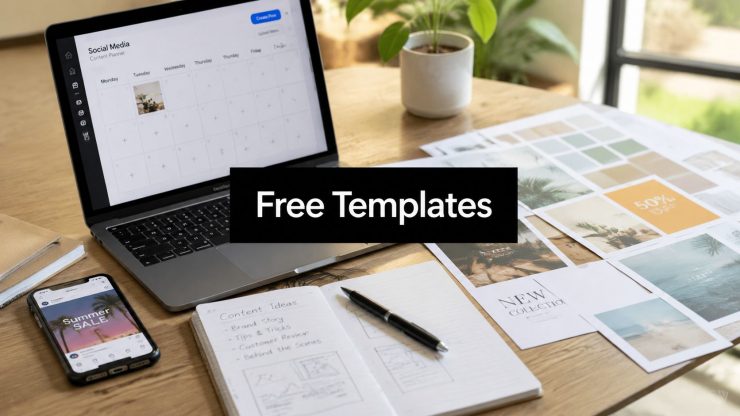
Are you saving free social templates, then wasting time rebuilding the same quote card, promo graphic, or stat post every week?
That is usually a workflow problem, not a design problem. Free template libraries are easy to find. True value comes from choosing a tool that helps you produce repeatable post formats, update them quickly, and slot them into a publishing system that keeps working after the first batch is done.
Ready-made templates are now a standard part of social production. Every major design platform has them, and that shifts the job from making each post from scratch to building a small set of reusable formats your team can keep cycling through. For a social manager, that means fewer one-off designs, faster approvals, and less brand drift across channels.
I judge these tools by one practical question. Can this template become a repeatable asset in an evergreen workflow?
That standard changes the shortlist. Some tools are better for high-volume post variations. Some are better for branded graphics, videos, screenshots, or quick turnaround work. The useful move is to batch-create your core post types once, store the winners, and then pair them with an automated scheduling setup so strong content keeps resurfacing instead of dying after one publish. If Facebook is part of that mix, these templates for Facebook posts fit well into that process.
1. Canva

Canva is the tool I'd hand to a busy social team that needs usable posts today, not after a long setup. It gets you from idea to publishable graphic fast, and that speed is why it stays in heavy rotation for recurring social work.
Its real advantage is template reuse. Canva makes it easy to build a small library of repeatable formats, then turn out new versions without redesigning from scratch every time. That matters most for the posts that tend to fill a content calendar: quote cards, event promos, testimonials, quick tips, carousels, and simple stat graphics.
Where Canva works best
Canva works best when your goal is volume with enough brand consistency to stay recognizable. A social manager can duplicate a proven layout, update the copy, swap the image, check the sizing against current social media post dimensions, and export a week's worth of creatives in one sitting.
That makes it a strong fit for an evergreen system. Build a few base templates for each post type, create multiple variations in batches, then feed those approved assets into a scheduler like EvergreenFeed so strong posts can keep circulating instead of disappearing after one publish.
- Best use case: Creating repeatable post series across multiple channels with minimal design overhead.
- Strongest advantage: Fast editing and low training burden for non-designers or mixed-skill teams.
- Main limitation: The free plan is good enough to start, but some premium elements and shortcuts that save time are locked behind Pro.
One warning from actual day-to-day use. Canva's huge template library can slow a team down if nobody sets rules. Too many fonts, too many color choices, and too many “almost right” layouts usually lead to inconsistent output and longer approvals.
Use Canva as a production system, not just a template bucket. Pick a handful of winners, lock in your brand basics, and keep those designs reusable. That is where Canva stops being a quick design tool and starts acting like the front end of a long-term content engine.
2. Adobe Express

Need social graphics that look more polished without sending every request to a designer? Adobe Express fills that gap well.
I use it for teams that already care about brand presentation and need templates that hold up under repeated use. The layouts generally start from a cleaner visual baseline than lighter tools, which helps when you're producing client-facing posts, B2B content, event promos, or leadership content where typography carries more of the message.
Best for teams that want more control over the final look
Adobe Express works well once a content calendar has clear repeatable categories. Pick a few template families for announcements, tips, testimonials, and offers, then adapt them around proven social media post ideas for business instead of designing from scratch every week. That is usually the point where design stops being a one-off task and starts supporting a system.
Its biggest practical advantage is refinement. You can keep the speed of template-based production while giving posts a more considered finish. That matters if your team has outgrown basic drag-and-drop editing but still needs a tool that non-designers can handle after a short handoff.
There is a trade-off.
Adobe Express is fastest when you stay disciplined. Use a small set of approved templates, keep brand assets organized, and avoid turning every post into a mini design project. Once a team starts tweaking every detail, production slows down and the value of templates drops fast.
Format control is another reason to keep it in the stack. Social teams still need to sanity-check exports against social media post dimensions, but Adobe Express gives you enough structure to build reusable assets for each placement without making the workflow feel heavy.
For an evergreen workflow, that matters. Build a handful of branded post types in Adobe Express, export variations in batches, then load those approved creatives into EvergreenFeed so strong designs keep getting reused on a schedule instead of disappearing after one campaign.
If your team wants more polish than entry-level template tools usually give, Adobe Express is a strong fit. Its main limitation is simple. The closer you get to advanced Adobe-style features and premium assets, the more the free plan starts to feel narrow.
3. VistaCreate (formerly Crello)

VistaCreate is one of the better options for marketers who want a broad free catalog without feeling constantly nudged toward an upgrade. It's especially useful if your content mix includes both static graphics and simple motion posts.
The biggest practical advantage is that many templates already feel built for social pacing. You can take a promo, tip, announcement, or quote layout and adapt it quickly into a regular series. For evergreen posting, that repeatability matters more than having endless design effects.
A good fit for mixed content calendars
If you post educational graphics one day and animated Stories the next, VistaCreate covers that range well. It's more flexible than tools that are mostly static-image editors, but it doesn't feel as heavy as a full creative suite.
That makes it a solid choice for building recurring themes from social media post ideas for business. Instead of brainstorming from zero, you can map each idea to a template family and keep production moving.
- Use it for: Tips, promos, announcements, quote cards, and light animated content.
- Skip it for: Teams that need advanced approval workflows or stricter brand governance.
- Watch for: Premium assets that can interrupt a “free-only” workflow if you're not careful.
VistaCreate also works well for smaller teams because the templates tend to be practical, not overly decorative. That's good for brands that need consistent output more than flashy experimentation.
Its weakness is depth. If you want tighter collaboration, stronger systematization, or more advanced controls, you may outgrow it. But for fast content production across several post types, it's a dependable option.
4. Desygner

Desygner doesn't get discussed as often as Canva or Adobe Express, but it's useful for one reason that matters in real teams. It stays simple.
If you work with founders, assistants, or clients who need to make their own edits without breaking everything, Desygner is approachable. The free template library covers the main social formats, and the editor doesn't overwhelm people who just need to update text, swap an image, and export.
The non-designer option
This is the tool I'd consider when the bottleneck isn't design quality. It's editability. Some teams don't need more creative freedom. They need fewer ways to mess up a good layout.
That makes Desygner practical for repeatable assets like:
- Quote posts: Same layout, new copy each week.
- Promotional cards: Same offer structure, updated details.
- Basic educational posts: Headline, icon, short body text, CTA.
The downside is that simplicity cuts both ways. It's fast, but it's not the strongest option for teams that want deeper brand controls, richer assets, or more refined visual styling on the free tier.
Desygner makes sense when you want a low-friction editor for social production. It makes less sense when your brand presentation has to feel highly differentiated.
5. PosterMyWall
PosterMyWall fits teams that publish often and do not want design work to turn into a bottleneck. I see it work best for restaurants, local events, schools, churches, and small agencies that need usable graphics fast, in high volume, across multiple formats.
Its advantage is operational. The template library is broad, the editor is easy to learn, and the platform keeps design and publishing close together. That matters if one person is handling content from idea to scheduled post.
Best for high-output content systems
PosterMyWall is a practical choice when your content plan depends on repeatable formats such as:
- Event promos: same structure, new date, venue, and speaker
- Offer graphics: same layout, updated product, price, or CTA
- Seasonal campaigns: one visual system adapted across holidays or promotions
- Community updates: quick announcements that still need to look polished
The trade-off is brand control. A big template library helps you produce more assets, but it does not give you a system by itself. Without clear rules, teams start swapping fonts, stretching logos, changing colors, and turning every post into a near miss.
That is why I would not treat PosterMyWall as just a place to make one-off graphics. It works better when you build a small template set you can reuse on purpose. Pick a few post types, lock in your visual rules, create approved versions, then feed those into an evergreen schedule. If you use a scheduler like EvergreenFeed for recurring educational posts, testimonials, reminders, or seasonal promotions, PosterMyWall can become the design layer for a content engine instead of a folder full of disconnected exports.
PosterMyWall is strong on speed and volume. It is less suited to teams that need tighter approval workflows or stricter brand governance on the free side. Used with a repeatable process, though, it can save a lot of production time.
6. Snappa

Snappa is for speed, not exploration. That's why some people love it and others bounce off it.
If your social workflow is repetitive by design, which many good workflows are, Snappa is efficient. Open a preset size, drop in your headline, pick a background, export. You don't spend much time wandering through endless design possibilities, and that's often a good thing when content production is the job.
Best for occasional or repeatable graphics
Snappa is a practical fit for simple needs:
- Blog post promo images
- Quote cards
- Basic ad creatives
- Header graphics
- Simple announcements
It's less suited to brands that want layered visual systems, more advanced motion, or broader creative experimentation. The free plan is also restrictive for anyone producing content regularly, so it works best as a light-use tool or a backup option.
What I like about Snappa is that it keeps the task focused. You're there to make a usable graphic, not build a miniature design project. For solo creators and small businesses, that can be a relief.
What doesn't work is trying to stretch it into a full design hub. Once your content mix gets more complex, Snappa starts to feel narrow.
7. Stencil
Stencil is one of the most speed-oriented tools in this list. If Canva feels broad and Adobe Express feels refined, Stencil feels stripped down for marketers who just need to publish visual content fast.
That narrow focus is its main strength. It doesn't try to be your entire creative department. It tries to get one image out the door quickly.
A lightweight tool with a clear job
Stencil makes sense for bloggers, affiliate sites, lean content teams, and anyone who turns written content into social graphics at high frequency. The browser extension and WordPress-friendly workflow are the giveaway. This tool was built for people already living in publishing systems.
Its appeal is simple:
- Fast starts: Preset sizes reduce setup friction.
- Quick edits: The editor is built for speed over complexity.
- Useful integrations: Browser and WordPress workflows help reduce app switching.
Stencil is weaker when brand expression is a major priority. The template library is smaller than larger suites, and the free plan won't carry a serious production schedule on its own. You use Stencil because it's efficient, not because it gives you the broadest creative playground.
For turning article ideas into social cards without a lot of ceremony, it still earns a place in the toolkit.
8. Microsoft Designer (via Microsoft Create)

Need to turn a rough post idea into a usable graphic fast? Microsoft Designer is one of the better free options for that early-stage work, especially if your team already uses Microsoft 365 and wants AI help without adding another complex design system.
Its strength is draft speed. You can start with a prompt, get multiple directions, and pick a layout that is close enough to refine instead of starting from a blank canvas. That makes it useful for campaign variations, quote cards, event promos, and simple branded posts that need to move from idea to approval quickly.
I use tools like this for volume planning, not final-brand craftsmanship.
That distinction matters. Microsoft Designer is effective when the bottleneck is concept generation or resizing basic social assets. It is less convincing when a brand needs tight visual control across a long publishing calendar. AI-generated layouts often look fine in isolation, but feeds built entirely from them can drift into sameness.
The practical use case is straightforward:
- Speeding up first drafts for new post ideas
- Creating multiple variations for the same message
- Adapting simple assets across different social sizes
- Reducing design bottlenecks for non-designers on the team
Where it gets more interesting is workflow. Microsoft Designer can help create the repeatable building blocks, but the true value comes after design. Once a few strong evergreen templates are set, they can support recurring content formats such as tips, stats, testimonials, and post snippets. Those assets are much more useful when they feed an automated queue in a tool like EvergreenFeed instead of being posted once and forgotten.
That is the bigger strategic point. Template tools are not just for making one nice graphic. The better use is building reusable post formats that save time every month.
9. Kapwing Templates

Kapwing belongs on this list because social templates aren't just static anymore. Many teams now need short-form video templates as often as they need square graphics, and Kapwing is built for that reality.
If your content strategy leans into Reels, Shorts, Stories, talking-head clips, memes, or captioned video snippets, Kapwing is one of the better browser-based choices.
Strong for video-first social teams
The editor is practical. Captioning, resizing, and reusable formats are more important in social video than advanced cinematic control, and Kapwing focuses on those basics.
That makes it useful for:
- Repurposing clips into platform-ready formats
- Turning webinar or podcast snippets into short social video
- Creating repeatable captioned video templates
- Building meme-style or commentary visuals quickly
The free plan has obvious friction points, especially watermarking and export limits. For some teams, that's fine for testing. For ongoing publishing, it can become a blocker fast.
Kapwing also works better when the account already has a clear content style. Without that, short-form template use can quickly drift into trend-chasing visuals that don't age well enough for evergreen scheduling.
10. BrandBird Templates

BrandBird is the specialist in this group. It's not trying to be a general-purpose graphic suite, and that's exactly why it's useful.
If your content is product-led, creator-led, or B2B-heavy, BrandBird is excellent for transforming screenshots, threads, interface shots, launch announcements, and content excerpts into clean social visuals. It's especially good for founders, SaaS teams, and marketers who post educational or build-in-public content.
Best for screenshot and content-showcase posts
BrandBird's strength is framing. A plain screenshot becomes presentable. A rough thread becomes a polished share graphic. A product UI shot starts to look intentional instead of improvised.
This works well for evergreen content because many of those assets have a longer shelf life than trend graphics. Product features, how-to workflows, content snippets, testimonials, and educational breakdowns can often be republished later with minor edits.
Use BrandBird when the content itself is the creative. Don't use it when you need broad campaign design flexibility.
Its narrow scope is the trade-off. You won't get the same range of generic marketing templates, stock assets, or multi-format creative options that broader tools provide. But for a specific type of social content, it's sharp and efficient.
Top 10 Free Social Media Template Tools Comparison
| Tool | Core features | UX & quality (★) | Price & value (💰) | Target (👥) | Standout (🏆 / ✨) |
|---|---|---|---|---|---|
| Canva | Thousands of editable templates; drag‑and‑drop editor; Brand Kit & resizing | ★★★★☆ polished & beginner‑friendly | 💰 Free tier; Pro for premium assets & scheduler | 👥 Solo creators, teams, marketers | 🏆 Huge template/asset ecosystem; ✨ fast on‑brand variations |
| Adobe Express | Ready‑made social templates; Adobe Fonts/Stock; mobile + desktop parity | ★★★★ polished, professional | 💰 Free + paid for advanced assets & publishing | 👥 Brands, social managers, creatives | ✨ Adobe fonts/stock integration; smooth publish workflows |
| VistaCreate | 80+ formats; animated & video templates; pre‑sized designs | ★★★★ strong free catalog | 💰 Generous Free Starter; paid for premium assets | 👥 Small teams, social creators needing motion | 🏆 Great animated/video templates; ✨ correct sizing out‑of‑box |
| Desygner | Web & mobile editor; free social templates; AI & scheduling on paid tiers | ★★★★ easy for non‑designers | 💰 Free core; Pro+ for AI, scheduling, premium stock | 👥 Non‑designers, small businesses | ✨ Simple workflows; friendly learning curve |
| PosterMyWall | 1.6M+ templates; vertical video support; built‑in Content Planner | ★★★★ large & practical | 💰 Many free downloads; Premium for scheduling/watermark removal | 👥 Teams needing end‑to‑end design→publish | 🏆 Massive template variety; planner + publish workflow |
| Snappa | 6K+ templates; 5M+ photos; preset social sizes; fast editor | ★★★☆☆ very fast & light | 💰 Free limited downloads; paid for unlimited & integrations | 👥 Solo creators, rapid post producers | ✨ Speed for repetitive post formats; clear pricing |
| Stencil | Preset sizes, instant resizing; browser & WP integrations; Google Fonts | ★★★☆☆ speed‑focused & efficient | 💰 Free limited; paid for more saves/downloads | 👥 Small teams, bloggers, WordPress users | ✨ Browser/WordPress integration; super quick image creation |
| Microsoft Designer | AI‑assisted templates & image gen; resizing across platforms | ★★★★ AI‑first, quick | 💰 Free features; some credits/advanced tied to Microsoft 365 | 👥 Microsoft 365 users, quick creators | ✨ AI prompts → designs; integrated image generation |
| Kapwing Templates | Editable image & short‑form video templates; captions & resizing | ★★★★ strong for video | 💰 Free with watermark/duration caps; paid lifts limits | 👥 Video‑centric creators, social editors | 🏆 Excellent short‑form video templates & captioning tools |
| BrandBird Templates | Platform‑specific frames; screenshot beautification; carousels | ★★★☆☆ simple & focused | 💰 Free templates downloadable without account | 👥 B2B, builders‑in‑public, product sharers | ✨ Purpose‑built frames for threads, screenshots, product shots |
From Design to Automation: Your Evergreen Content Workflow
Free templates save time once. A repeatable workflow saves time every week after that.
That's the part many teams miss. They download a design, customize it, post it, and move on. Then the next week they start over. A better system treats every good template as a reusable production asset. The goal isn't just to make a post. It's to build a small library of post formats you can keep reusing for months.
Hootsuite's template collection reflects that broader shift toward self-serve editing and operational reuse. Its free template hub includes calendars, reports, audits, and other marketing assets, and Hootsuite says users can download a template by filling out a short form and edit it in Google Docs, Google Slides, or another preferred program via its marketing template library. Smartsheet's reporting guidance also reinforces the operational side by focusing on recurring metrics like engagement rates, follower growth, content performance, and audience demographics. The bigger point is that template use now sits inside a broader workflow of planning, editing, and measurement.
Here's the simplest version of that workflow.
Build the asset library first
Batch-create a set of posts in one sitting. A practical starting point is tips, quotes, blog promos, testimonials, product highlights, and simple seasonal or promotional cards. Use one tool from this list, not five. Consistency matters more than variety at this stage.
Keep each design tied to a repeatable format. One quote template. One blog card template. One promotional card template. One educational carousel style. That gives you structure without making the feed feel robotic.
Move finished designs into buckets
Once your images are exported, organize them by content type instead of by platform. “Blog Posts,” “Testimonials,” “Quotes,” “Promotions,” and “Tips” are more useful buckets than “Instagram” or “LinkedIn,” because the same core creative can often be resized or lightly adapted later.
An evergreen scheduler demonstrates its utility. EvergreenFeed is one option that lets users add Buffer accounts, categorize posts into buckets, and set posting schedules by account and content type. That setup fits template-driven social well because you create the asset once, assign it to the right bucket, and let the publishing rhythm keep working in the background.
Automate the repeatable part
Set a schedule for each bucket and let the system handle the recurring queue. Evergreen content works best when the design is reusable, the message has a long shelf life, and the scheduling tool can keep circulating strong posts without manual intervention every day.
The key is choosing templates that age well. Educational graphics, quote posts, list-style tips, testimonial cards, and product explainers usually hold up better than trend-heavy visuals. That makes them a natural fit for an evergreen engine.
What doesn't work is dumping random designs into a scheduler without categories or naming conventions. You'll lose track of what can be reused, what needs updating, and which visuals still represent the brand correctly. Good automation depends on clean inputs.
Templates aren't just shortcuts. Used properly, they become the front end of a durable content system. Design once, organize well, and publish repeatedly.
If you want to turn finished templates into a repeatable posting system, EvergreenFeed is built for that workflow. You can organize evergreen posts into buckets, connect Buffer, and automate recurring social publishing without rebuilding your schedule by hand each week.

 Leiann